Campaigns
Product Bundle Photography: Show Exactly What Comes in the Set
Plan bundle images that make quantities, variants and included items clear. Includes an original gift-set shot list and a four-panel ad brief.
Make it with Panelly
Turn inspiration into your next product ad
Bring a product image and an idea. Create a four-panel ad, a coordinated asset set, or a video with Panelly.
Create with Panelly Edit the brief before you generate.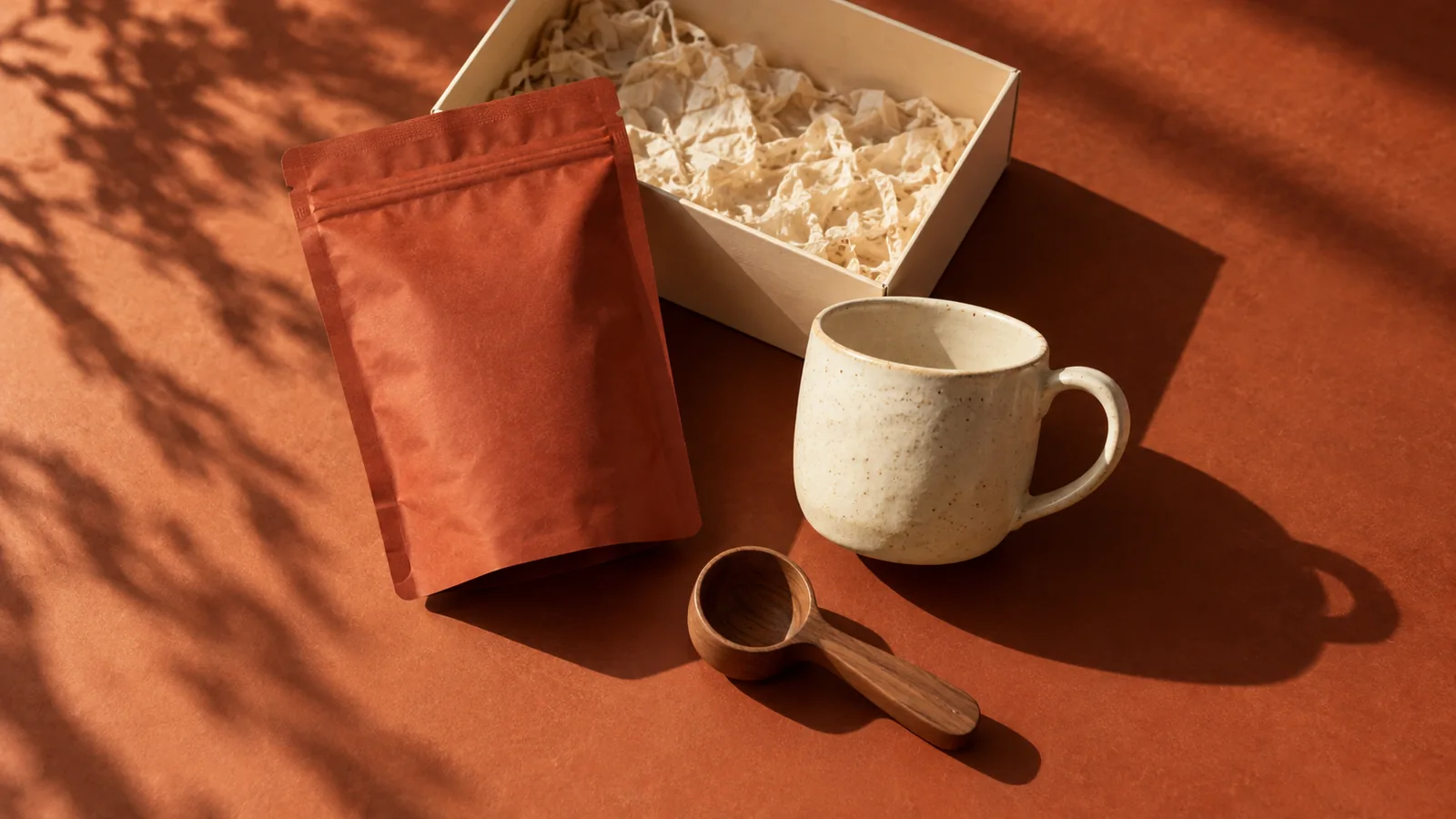
Photograph a product bundle so shoppers can count the included items and recognize the exact version they are buying. Start with one clear contents image, then add styled views that explain how the set is used or given. Keep optional extras, decorative props and alternative variants visually distinct from what the price includes.
A bundle can look generous while remaining precise. The problem is not styling itself; it is styling that makes a second cup, gift box or accessory look included when it is not.
Write the contents sentence first
Before arranging anything, finish this sentence: “This set includes…” Use the same quantities and variant names as the product listing. If the bundle changes when the customer chooses an option, record which configuration the photograph represents.
For an original fictional example, imagine a coffee gift set containing one 250 g bag of beans, one cream ceramic cup and one kraft gift box. The linen cloth and small wooden scoop are styling props, not included products.
| Object in the planned scene | Included? | How to present it |
|---|---|---|
| One 250 g coffee bag | Yes | Show the actual packaging and readable size |
| One cream cup | Yes | Keep its shape and glaze consistent across views |
| One kraft gift box | Yes | Show it in the contents view and gift-ready view |
| Linen cloth | No | Use as a background texture, not an item laid out with the set |
| Wooden scoop | No | Remove it from the main contents image |
This short inventory becomes the reference for both photography and AI-assisted creative work. It is more reliable than reconstructing the offer from an attractive moodboard.
Make the contents view easy to count
Arrange the included objects so their outlines are clear. Avoid hiding one item behind another or stacking identical products in a way that makes the quantity ambiguous. A box can sit beside the objects rather than surrounding them so tightly that it obscures their contents.
Shopify's product-photography guide discusses group and packaging photographs as ways to show assortments and bundle contents. For your own set, make the first contents view answer the specific purchase question before adding atmosphere.
If you show a closed package and its contents together, make clear that the package belongs to the displayed set. An open box plus another closed box can accidentally suggest two packages. A caption cannot always overcome a composition that strongly implies a larger quantity.
Separate a fixed set from a configurable bundle
A fixed bundle has a defined set of included products. A configurable bundle can have choices, quantities or optional additions. WooCommerce's Product Bundles documentation describes those configuration types; the visual challenge is making the pictured configuration agree with the selected one.
If the customer chooses between a cream cup and a navy cup, a photograph of both cups together can look like a two-cup set. You can use a clearly labeled option-comparison image, but keep the main purchase image aligned with the actual offer.
Check the cart presentation too. A correct selection paired with the wrong thumbnail can make the shopper doubt what they are buying. That website behavior needs to be handled in the store; generating a new ad does not automatically update product or cart images.
Use four frames to explain the set without multiplying it
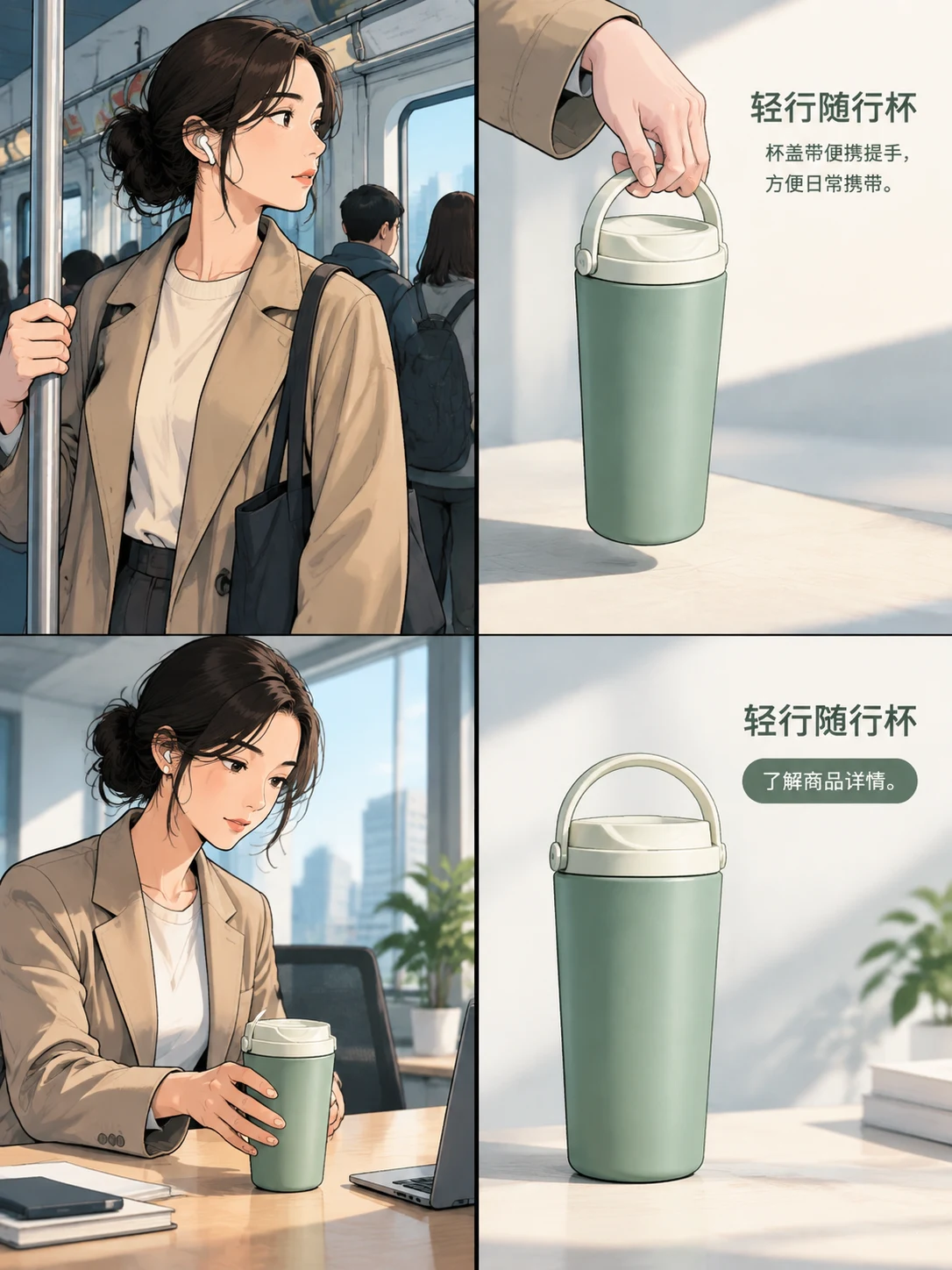
A four-panel ad repeats products across scenes. Make that repetition read as views of one set rather than four separate sets included in the purchase.
| Frame | Scene | Creative purpose |
|---|---|---|
| 1 | The gift box on a table, with one cup and the coffee bag nearby | Introduce the gift idea |
| 2 | A clear overhead arrangement of the three included items | Explain exactly what comes in the set |
| 3 | The same cup in use beside the coffee bag | Show the everyday experience |
| 4 | One complete gift set with its name and shopping invitation | Close with a recognizable offer |
For the fictional example, a concise contents line could read “Coffee, cup and gift box.” Add the actual bag size where it matters. Do not invent a discount or call it a two-person set simply because the styling shows a shared table.
Give the image model the inventory, not just the mood
Try this complete-image direction in Panelly Studio, using references for the actual objects:
Create a four-panel ad for this coffee gift set.
Included: one 250 g coffee bag, one cream ceramic cup and one kraft gift box.
Use the packaging and cup shape in my references. Keep the same objects across all four scenes.
Show the gift idea, the three included items clearly separated, the cup in use, and one complete set with “Coffee, cup and gift box” and “Explore the set.”
Use warm morning light and a quiet cream-and-brown palette.
No second cup, scoop, ribbon or extra accessory should appear as part of the offer.
The prompt gives creative freedom to the light and scene while being specific about the products. Inspect the generated result for duplicates, changed labels and missing items. A reference guides generation; it does not make an inventory check unnecessary.
Fix quantity problems before decorative details
If the first version adds a second cup, a useful edit request is: “Remove the extra cup from the contents scene. The set contains one cup. Keep the coffee bag and gift box, and leave enough space to count all three items.” This is more actionable than “make the bundle clearer.”
Save the next version and compare the whole image. A correction to one object may change another scene. Check the actual offer across the image before spending time on a subtle background texture.
Finally, inspect the destination product page with the same inventory sentence. The ad, listing, selected variant and cart should describe the same purchase. That consistency is part of recording creative-test changes when you later compare campaign variants: a change in included quantity is an offer change, not merely an artistic variation.
FAQ
Should I show every included item in the hero image?
For a small fixed set, a clear contents view is often useful. If the set has many items, give it a dedicated organized view and an accurate contents list rather than hiding pieces behind packaging.
Can I include props in bundle photography?
Yes, when their role is clear. Remove props that could reasonably be mistaken for included items from the main contents view, and make the actual offer explicit.
What if the bundle has several options?
Identify which configuration each image represents. A comparison of options should not look like every option comes in one order. Check the selected product and cart thumbnails as well.