Creative practice
Product Video Sound Design: Give Each Sound a Visible Reason
Tie sounds to visible product actions, write a short cue sheet and check the exported clip on a phone as well as in preview.

Make it with Panelly
Static vertical-video storyboards
Plan a vertical-video ad with a static four-panel storyboard. Describe the scenes, choose 9:16 and explore the visual direction before production.
Try this in Panelly Edit the brief before you generate.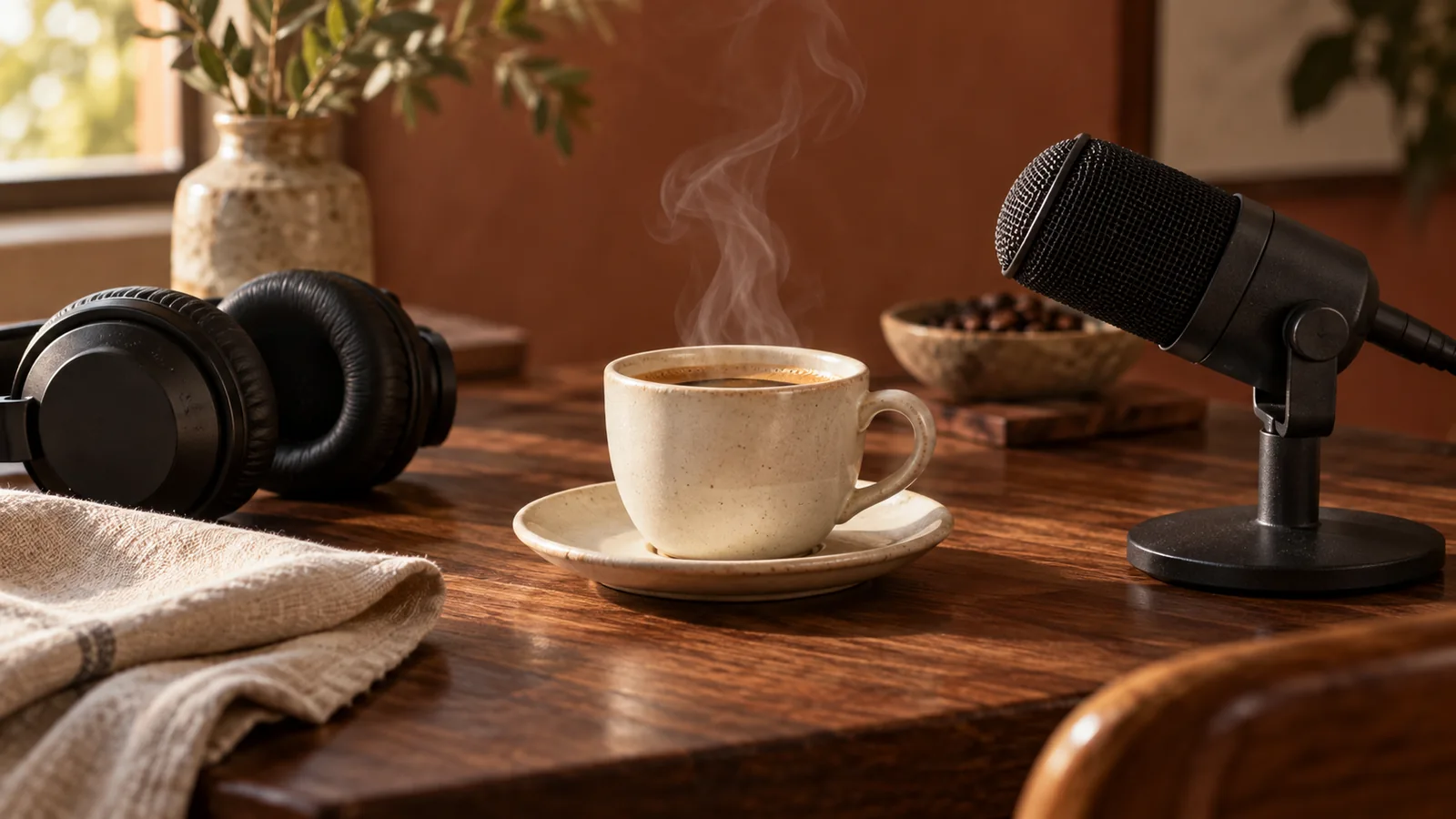
Build a short product video's sound around the visible action: a ceramic cup touching its saucer, a zipper closing or a button clicking. Keep ambience quiet enough that the action remains distinct. Music can support the mood, but a loud track does not fix a missing or mistimed product sound. Watch the clip silently as well, so the offer still makes sense without audio.
Adobe's sound-effects guide distinguishes categories of effects, including Foley. Here the useful question is simpler: what event should the viewer hear, and when should that event happen?
Write a short cue sheet
| Picture event | Possible sound | What to avoid |
|---|---|---|
| Cup meets saucer | One light ceramic contact | A heavy cinematic explosion |
| Fabric pouch opens | A short zipper sound | A click with no visible mechanism |
| Product rests on a desk | Quiet room ambience | Continuous impacts while nothing moves |
| Closing product frame | A restrained ending or brief quiet | A new voice making an unapproved claim |
The sounds are creative choices, not recordings of these fictional products. If a real mechanism has a distinctive sound that must be represented accurately, record it or use an appropriate licensed source in a separate audio editor.
Make one event carry the moment
Imagine an eight-second coffee ad with four shots: cup in morning light, a product detail, the cup being set down and a closing package view. The third shot already has a visible event. Let the light ceramic contact mark it; do not add a whoosh to every camera movement.
Keep the room ambience consistent across those shots. If the scene is a quiet kitchen, a crowd or traffic bed can suggest an entirely different place. The closing frame can become calmer instead of louder, leaving the viewer with the product and its existing message.
Make this ad a video with quiet kitchen ambience and a light ceramic sound when the cup meets the saucer. Keep the ending calm. No voiceover; preserve the current message.This prompt is an editorial example and has not been run as a paid generation test. The point is to connect a sound to a visible event, not to guarantee exact synchronization from a text instruction.
Put the idea to work for your product
Static vertical-video storyboards
Plan a vertical-video ad with a static four-panel storyboard. Describe the scenes, choose 9:16 and explore the visual direction before production.
Try this in Panelly Edit the brief and replace the reference in Studio. Sign in when you are ready to create.Understand what the current workflow controls
As checked on September 18, 2026, Panelly requests generated audio for both its Seedance Mini and Kling video paths. Audio requests are part of the generated clip. They do not provide a multitrack mixer, downloadable stems or an exact timeline for moving an individual sound afterward.
Discuss the audio direction in chat before generation. Keep the request short and tied to the picture. If a clip is visually successful but its sound needs exact timing, a separate video or audio editor may be a more efficient next step than regenerating the entire picture repeatedly.
Do not confuse a muted player with a silent source file. Check the player's mute control and play the downloaded video before concluding that audio is missing. If the file itself has no usable sound, that observation is different from a muted preview.
Listen in three passes
First, watch with sound off. Can you still identify the product and the intended action? Next, listen with the picture and check that each impact or movement sound corresponds to an event. Finally, play it through an ordinary phone speaker at a comfortable volume. A sound that is clear on headphones can be hard to notice there.
Check the exported file, not only the editor preview. A delayed contact sound can make a believable cup placement feel wrong. Avoid judging loudness by repeatedly raising the device volume; compare the elements within the clip and keep the product event understandable.
In Panelly Studio, start from a generated four-panel ad and describe the desired scene and sound. Review the proposal and cost before generating. For the visual side of that brief, see camera-motion prompts.
FAQ
Does every ad need music?
No. A clear product sound and an appropriate quiet background can be a complete direction for a short clip.
Can I ask for no voiceover?
Yes. State it directly and listen to the result. The current video prompt also avoids invented voiceover; inspect the generated audio before use.
Can Panelly move one sound later without regenerating the video?
The current workflow creates video versions, not individual audio-track edits. Use a dedicated editor when precise sound placement is the remaining task.
Choose one visible action and write the sound it should produce. Build the rest of the audio around that moment.