Campaigns
Pre-Order Ad Copy Examples: Make the Wait Clear Before the Click
Choose the right preorder action, keep estimated dispatch distinct from arrival, and plan a static four-panel product ad with a worked brief and delivery checks.

Make it with Panelly
Four-panel product ads
Turn a product benefit into a connected four-panel ad. Explore a visual direction, refine the result through conversation, and download the complete image.
Try this in Panelly Edit the brief before you generate.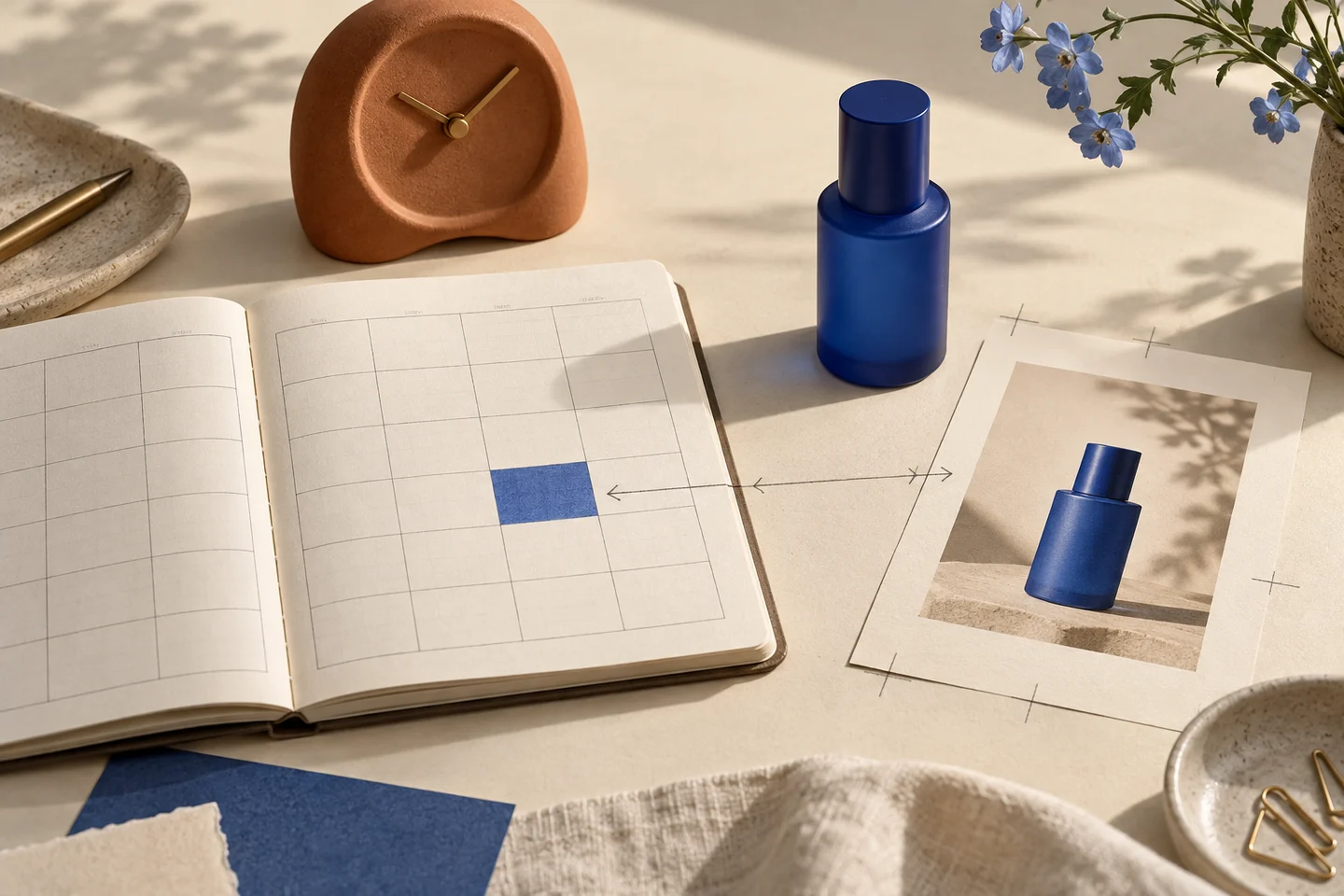
A pre-order ad should say that the product is a pre-order, distinguish estimated dispatch from arrival, and lead to the terms for that exact item. If shoppers can only join a notification list, ask them to join the list. Do not imply that an order has been placed or a delivery date has been secured.
This guide plans one static four-panel product ad. The cobalt ceramic desk clock and February 2027 dispatch estimate are fictional editorial inputs. We executed Panelly's Brief Builder compiler locally with those inputs; its output is formatted text, not an accepted image, verified fulfilment plan or customer campaign.
The small-business creative ideas guide helps choose a campaign direction. This task is narrower: explain an item people can order before it is ready to dispatch.
Choose the action that your store actually offers
A paid pre-order, a deposit and a notification signup are different actions. Check the destination before choosing the headline. Shopify's pre-order documentation describes options for full, partial or no payment at order time. It does not mean your shop offers all three.
| Confirmed customer action | Original ad wording to adapt | Destination to check |
|---|---|---|
| Place a pre-order | “Pre-orders open for the cobalt desk clock.” | The exact pre-order item and its terms |
| Pay a confirmed deposit | “Reserve the clock with a deposit.” | The deposit amount and remaining-payment terms |
| Request an availability email | “Get an email when the clock becomes available.” | The actual notification signup |
These are copy examples, not instructions for installing checkout functionality. Panelly does not create reservations, charge deposits or connect an ad to your stock system. If the intended customer cannot perform the stated action in their region, change the destination or message before running the ad.
Say dispatch when you mean dispatch
“Estimated dispatch: February 2027” describes an expectation about leaving the seller. “Arrives in February” makes a different statement about reaching the buyer. Do not turn one into the other while shortening the copy.
For the fictional clock, the approved opening is “Pre-orders open.” The supporting line is “Estimated dispatch: February 2027.” The action is “View pre-order details.” No price, discount, exact day or payment schedule has been supplied, so none should appear in the ad.
Keep the estimate beside the pre-order statement, not hidden in a decorative corner. If no timing is confirmed, do not insert a sample date into the public creative. Ask the business for wording it can support; a waitlist may be a different campaign if that is the only real action available.
Build a brief that preserves the qualifying words
Open the English Brief Builder and choose Product discovery. There is no dedicated pre-order mode. The tool formats supplied information; it does not check payment terms or shipping estimates. Our locally executed input used this approved message and exclusion:
Approved message: Pre-orders open. Estimated dispatch: February 2027.
Call to action: View pre-order details
Do not add: No in-stock claim, guaranteed arrival date, discount, countdown or invented payment terms.
The actual formatted output retained the complete approved message and action. It also reported the deliverable as one complete static 2×2 four-panel image, with a 3:4 overall ratio. The output did not change “Estimated dispatch” to “Delivery guaranteed.” This is a text-formatting observation, not proof that an image model will reproduce the sentence accurately.
Replace every fictional input, build the brief, and inspect the text before copying it. Opening Studio does not transfer the brief automatically. The brief checklist explains the other fields to complete.
Put the idea to work for your product
Four-panel product ads
Turn a product benefit into a connected four-panel ad. Explore a visual direction, refine the result through conversation, and download the complete image.
Try this in Panelly Edit the brief and replace the reference in Studio. Sign in when you are ready to create.Give each panel a job without hiding the terms
Use the four panels to explain the product while keeping the availability message connected to the final action. The example is a layout plan, not a generated clock image.
| Panel | Visual job | Required review |
|---|---|---|
| Top left | Recognize the clock and say pre-orders are open | The opening must not say “in stock” |
| Top right | Show the visible face and hands | Do not invent silent movement or accuracy claims |
| Bottom left | Show the clock on a quiet desk | Props must not look like included accessories |
| Bottom right | Repeat status, estimated dispatch and next action | All three remain readable together |
A pre-order label cannot repair an invented product feature. Compare the clock shape, markings and color with the actual reference. A staged use scene is not evidence of a shipped product or a customer testimonial.
Take a complete request into Studio
Adapt this illustrative request in the four-panel Studio task. Attach the real approved reference there. Review the plan and displayed credits, then explicitly confirm generation when you are ready.
Create one complete static 2×2 four-panel ad for our cobalt ceramic desk clock, 3:4 overall.
Audience: people furnishing a quiet home desk who can wait for later dispatch.
Use these exact supplied lines: “Pre-orders open.” “Estimated dispatch: February 2027.” “View pre-order details.”
Top left: introduce the clock and pre-order status. Top right: show the visible face without adding technical claims. Bottom left: show a quiet desk context. Bottom right: keep the pre-order status, dispatch estimate and action legible together.
Use the actual clock reference attached in this conversation. Keep its appearance as a review requirement.
Do not add in-stock wording, a guaranteed arrival date, discount, countdown, price or payment terms.
Return one static image, not four carousel files or a video. This sample date and product are illustrative; replace them with confirmed facts before use.
The output combines panels and wording into one image, not editable text layers. A request to keep markings does not guarantee identical labels or unchanged pixels. Review the whole result against the reference, including details outside the requested change.
Check the estimate after changing the crop
Download the original image first. In the crop preview tool, compare your intended ratio using crop and fit. Move the crop only if the product, status, estimate and action all survive together. Fitting the whole image avoids removing edges but may make the important text too small.
The tool runs locally, exports the chosen geometric treatment and provides review notes. It does not recognize missing words, recreate clipped labels or certify platform safe zones. Read the downloaded PNG at the intended display size, then inspect the actual placement in your publishing account. Use the existing size guide for canvas choices rather than assuming every ratio is a Studio generation option.
If no crop keeps the complete meaning, return to Studio with a new composition request. Do not crop off “Estimated” just to retain the month. Regeneration can change other details and consumes the credits shown in Studio; inspect the entire new version.
Match the ad to the current product page
Open the exact item and check the action, variant, estimated dispatch and payment explanation. A waitlist page does not fulfil a “Pre-order now” promise. A pre-order page does not establish that the item has returned to stock. Use the message-match audit for the destination review.
When availability or timing changes, update the creative and store information in the systems you use. Panelly does not update published ads or your fulfilment promises automatically. Start by supplying the confirmed action and timing in the Brief Builder, then bring the reviewed text and actual product reference into Studio.