Campaigns
Digital Download Ad Copy Examples: Say What the Buyer Receives
Brief a static product ad that separates the purchased artwork file, buyer printing and styled props. Includes original copy, actual Brief output and a full Studio request.

Make it with Panelly
Four-panel product ads
Turn a product benefit into a connected four-panel ad. Explore a visual direction, refine the result through conversation, and download the complete image.
Try this in Panelly Edit the brief before you generate.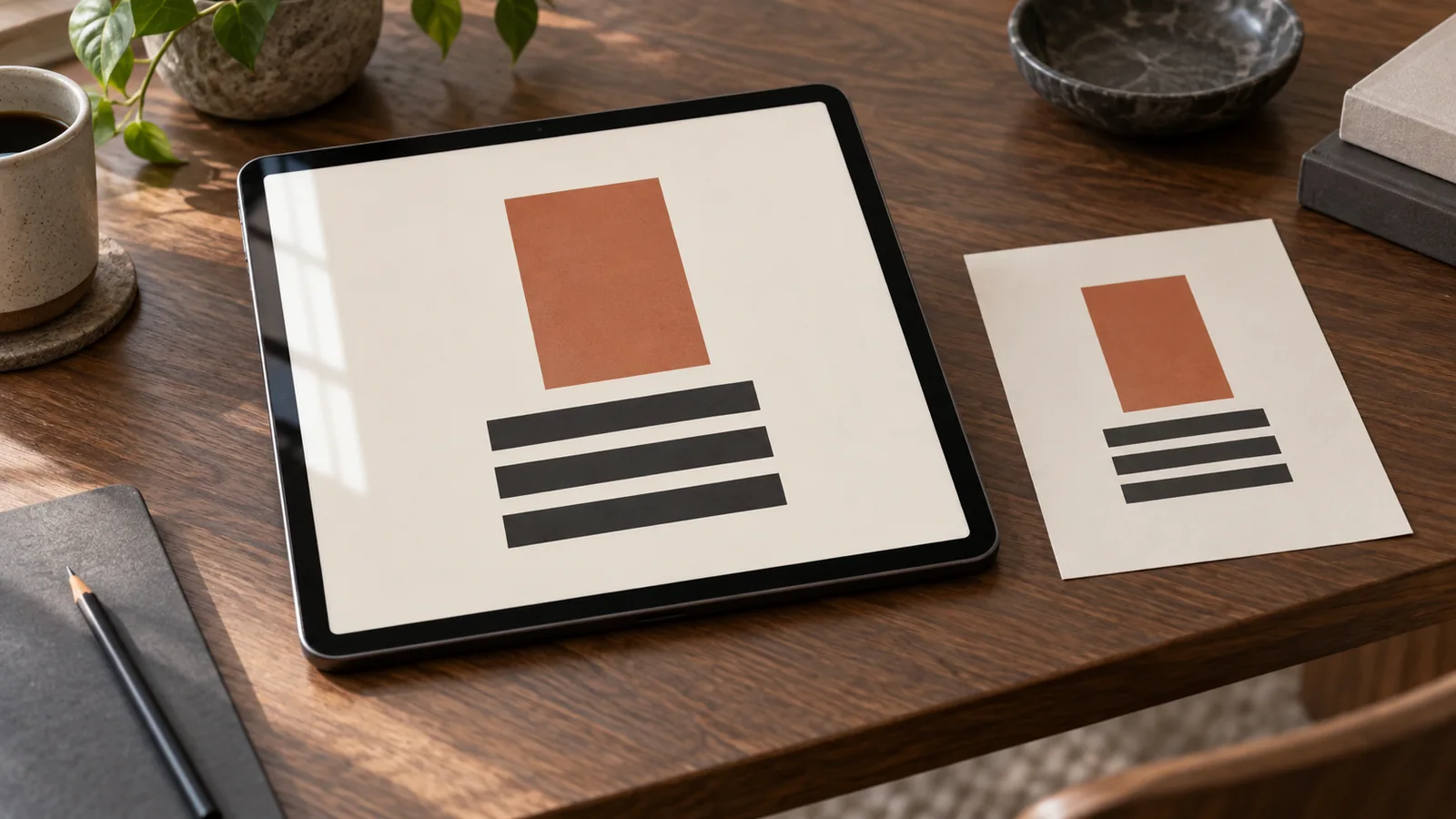
Digital download ad copy should identify the purchased file before a room scene makes it look like a delivered object. Say what the file contains, separate printing and framing from the purchase, and give a next step that matches the actual listing. Use “instant” only when the seller has verified the relevant access process.
This worked example connects those decisions to a four-panel product ad, with original copy, actual local Brief output and a complete Studio request. The product is fictional. No checkout, artwork delivery, printing or image generation was tested. The cover illustration shows a tablet and a paper design; it is not the example artwork or evidence of print quality.
Name the file before describing the finished room
Lead with the thing being sold: a downloadable artwork file. A framed picture can explain a possible use, but it cannot carry the entire explanation of the offer. If the first line says only “A quiet corner for your home,” the reader still has to discover whether the purchase includes a poster, a frame or a file.
For this example, a fictional shop offers Linden Lines, one JPEG artwork file measuring 2400 × 3000 pixels, for personal use. No physical print or frame is supplied. The buyer arranges printing. There is no supplied price, file-access method, access time, print service, editable source file or additional size. These are planning facts, not a verified downloadable product.
Write that distinction into the main message rather than adding an unreadable footnote. “Digital artwork file; print it yourself” answers a purchase question. It does not establish that every printer can reproduce the artwork, that paper and ink are included, or that a generated room view is a scale-accurate preview.
FlowerOfLondon's own download information separates printable files from physical shipment. That is a useful disclosure structure, not permission to reuse its artwork, file package, licensing or delivery promises. The example below keeps its own invented facts.
Separate the file inventory from the styled scene
Build two lists: what the buyer receives and what the image merely illustrates. This is the inventory discipline of product bundle photography, applied to a file-only purchase. A visible frame is especially easy to mistake for a supplied item when it surrounds the entire artwork.
| Item or detail | Meaning in the fictional offer |
|---|---|
| One JPEG, 2400 × 3000 pixels | The supplied artwork file; not several files in different sizes |
| Personal use | The supplied example usage limit; not commercial permission |
| Paper print and frame | Not supplied; any scene must identify them as a styling example |
| Printing | Arranged by the buyer; no included service or quality guarantee |
| File access and timing | Not provided; resolve before making an access promise |
For the reference, choose an authorized flat preview of the real artwork. A screenshot full of app controls or a collage of five different designs can create new ambiguity. Keep private order details, buyer names, access links and receipt numbers out of the reference. Do not add a fake download receipt to make the concept look more convincing.
A buyer discussion about digital listings presented as physical prints describes confusion around displayed prices and formats. It is one archived complaint with conflicting replies, not evidence of how often this happens or of current platform policy. Use the underlying question—what am I buying?—without repeating its price claims or blaming a group of shoppers.
Compare three copy directions with different jobs
Choose one direction for a first brief. These are original alternatives for the same fictional file, not measured campaign winners or three automatically generated Panelly variants. None promises a physical product or verified delivery time.
File first
Headline: “Linden Lines, as a digital artwork file.” Supporting line: “One JPEG. Print and frame not included.” CTA: “View the file details.”
Use this direction when the category could be misunderstood. Show the flat artwork preview early, then a clearly qualified styling scene. Keep the file count beside the product name rather than scattering file icons around the composition: several icons can suggest a bundle that is not actually supplied.
Buyer action first
Headline: “Choose the art. Arrange your print.” Supporting line: “Digital file only; you handle printing.” CTA: “See what is included.”
This direction explains the next job after purchase. It should not quietly become “Print perfectly at home” or “Ready for any frame.” The brief does not establish equipment compatibility, paper choice, color accuracy or a finished print size. If a real seller wants to name a print size, first verify the actual file and the intended printing conditions separately.
Scene with a clear label
Headline: “Imagine the corner; buy the file.” Supporting line: “Room styling example. No print or frame supplied.” CTA: “Check the artwork file.”
Use a room scene to suggest a setting while the product remains a file. Keep the qualification near the scene. Do not show an unexplained shipping box, free frame or checkout confirmation. If the scene would still look like a framed-product offer with the caption removed, simplify it before asking the model for prettier lighting.
Put the idea to work for your product
Four-panel product ads
Turn a product benefit into a connected four-panel ad. Explore a visual direction, refine the result through conversation, and download the complete image.
Try this in Panelly Edit the brief and replace the reference in Studio. Sign in when you are ready to create.Run a Brief that leaves unknown access timing unresolved
The general advertising Brief examples explain objective, message and next action. For this task, open the Brief Builder and keep its product-discovery goal. Put the file-only qualification in the approved message so it stays central to the output.
| Field | Input used for this text experiment |
|---|---|
| Product | Fictional Linden Lines artwork; one JPEG, 2400 × 3000 pixels; personal use |
| Approved message | File only; no print or frame; buyer arranges printing; access method and timing not provided |
| Audience | A shopper deciding whether the styled image represents a file or a physical print |
| Direction | One complete 2×2 static ad: identify file, show authorized preview, qualify scene, close with file details |
| CTA and format | View the file details; overall ratio 3:4 |
| Exclusions | No instant access, automatic email, extra files, print service, price, commercial rights or quality guarantee |
The actual current local formatter produced these English lines. Its full input and output were saved, and the saved-input JSON was parsed and recompiled to the identical text. This was a local text experiment, not another production form submission. The tool formats a template; it does not generate the artwork, test a purchase or transfer the result to Studio.
Product: Fictional Linden Lines printable artwork: one JPEG file, 2400 x 3000 pixels, for personal use
Approved message: Digital artwork file only. No physical print or frame is supplied. The buyer arranges printing. Example file: one JPEG, 2400 x 3000 pixels; personal use only. File-access method and timing are not provided.
Call to action: View the file details
Offer: Not requested for this brief.
Deadline: Not requested for this brief.
Deliverable: One complete static 2×2 four-panel image; 3:4 overall aspect ratio.
Offer and deadline remain unrequested; a file product does not imply a promotion. Before using an immediate-access claim, check the real store process. Etsy's buyer help distinguishes ready downloads after payment confirmation from files completed to order. That distinction concerns Etsy; this example has no verified Etsy integration, automatic email or delivery-time test.
Adapt one complete static request in Studio
Open the four-panel task in Studio, attach one authorized artwork preview and replace the fictional facts. The token below refers to that one image. The request plans promotional imagery around a file product; it does not manufacture the purchased JPEG or preserve its exact pixels.
Create one complete static 2x2 four-panel product ad, overall ratio 3:4.
Use @image1 as the authorized appearance reference for the artwork preview.
Fictional product: Linden Lines, one JPEG artwork file, 2400 x 3000 pixels, personal use only.
No physical print or frame is supplied. The buyer arranges printing.
Panel 1: identify the product as a digital artwork file.
Panel 2: show one flat artwork preview; do not suggest extra files or editable layers.
Panel 3: a restrained room-styling example, labeled as an example with no print or frame supplied.
Panel 4: return to the artwork preview and the action “View the file details.”
Use quiet cream and charcoal styling and readable short text.
No price, instant access, automatic email, shipping, commercial-use permission, print-quality claim, extra size or verified checkout screen. File-access method and timing are unknown.
This is one complete static image, not a video, four separate carousel files or a layered artwork delivery.
If the result implies an included frame, select the generated image and use Mention and refine to request a clearer complete-image version. Explain which scene creates the false impression. Compare the whole new result with the old one; a refinement can change artwork details, wording or other areas too. The reference-image workflow provides that comparison discipline without a guarantee of unchanged labels or pixels.
Match the destination, then inspect the downloaded ad
Compare the chosen CTA with the actual file-details page, using the message-match checklist. Check the same file count, format, pixel dimensions, usage statement, physical exclusions and buyer printing step. If access instructions are still missing, resolve them in the store rather than letting the ad invent an automatic email or universal download button.
Download the complete ad and inspect it at its intended display size. Can a reader identify “digital file” without zooming? Did the scene introduce an extra design, a printed poster or a frame that appears included? Does a pixel-dimension label look like a physical-size claim? Compare the depicted artwork with the authorized preview, and use the actual product file for any quality assessment.
The image resizer can prepare a local output dimension; inspect after cropping or fitting. The image compressor can reduce an ad's encoded bytes with tradeoffs. Neither verifies the sale file, grants usage rights or certifies a printed result. A changed or compressed ad is also not a substitute for the buyer's purchased artwork file.
For your next creative direction, take one verified file inventory, one authorized preview and one of the three copy directions back into Studio. Finish with an ad that says what is sold and a destination that explains how to receive it.