Campaigns
Back-in-Stock Ad Examples: A Clear Brief for the Product That Returned
Plan a static restock ad for the exact product or color that returned. Includes three copy examples, a real Brief Builder input/output and a four-panel request.
Make it with Panelly
Four-panel product ads
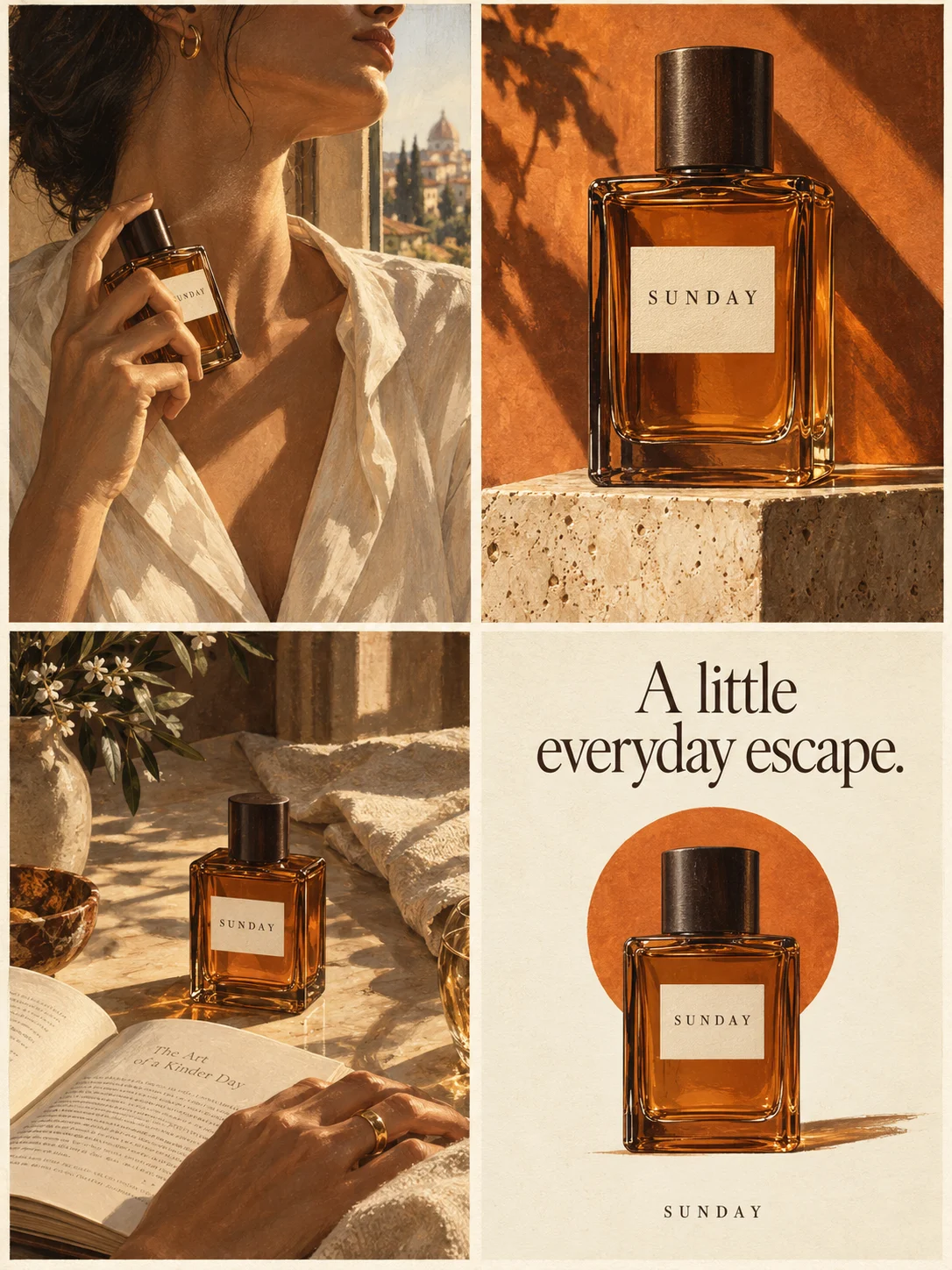
Turn a product benefit into a connected four-panel ad. Explore a visual direction, refine the result through conversation, and download the complete image.
Try this in Panelly Edit the brief before you generate.
A back-in-stock ad should show the exact product or variant that returned, say what is available, and lead to a page where that item can actually be ordered. Start with the return itself. A discount, countdown or claim that the product is a bestseller is a separate fact; a restock does not establish any of them.
The examples below help you plan one static four-panel product ad. The moss-green pen cup is fictional. We entered its supplied facts into Panelly's live Brief Builder and inspected the actual text output on October 19, 2026. We did not generate an ad image, check a real store's inventory or run a paid campaign.
The small-business ad ideas guide covers choosing an overall campaign direction. Here the starting decision is specific: announce a confirmed return.
Which product can you honestly call back in stock?
Name the item shoppers can buy now, including the returning color or size when it matters. If only the green cup returned, “All colors are back” gives the ad a different meaning.
Check the customer-facing product page with that variant selected. Then confirm the fulfilment facts with your store's inventory record. A working purchase button alone is not proof that goods are physically available: Shopify documents an option to continue selling out-of-stock products, including preorder situations. Stock location settings can also affect online availability.
Keep a preorder or a notification-list message separate from an in-stock announcement. If you cannot confirm the return, prepare the brief but do not use “Back in stock” as a placeholder in a live ad.
Three restocks need three different opening messages
Choose the opening from the actual change in availability. These are original copy examples to adapt, not observed customer ads.
| What returned | Example opening | Next action |
|---|---|---|
| The same product, with no relevant variants | “The desk pen cup is back.” | “See the pen cup” |
| Only the moss-green color | “Moss green is back in stock.” | “Shop the moss-green pen cup” |
| A named two-piece set | “The cup-and-tray set is back.” | “See what is included” |
The third message requires the complete advertised set to be available. Do not photograph a tray as a prop and then call it part of the restock. The product-variant guide covers keeping colors, sizes and offers aligned.
A returning shopper may recognize the item immediately. Someone seeing it for the first time still needs a clear product view and one reason to inspect it. The four-panel plan below leaves space for both, without inventing a waitlist size or customer quote.
Fill the restock brief with the facts you already have
Use the existing Ad Brief Builder to organize the message. It formats your entries into editable text; it does not check stock, invent a campaign or generate an image. There is no separate “Restock” mode. For this example we selected **Product discovery** and **3:4**.
These were the actual inputs used for the fictional example:
| Tool field | Supplied input |
|---|---|
| Product | Moss-green ceramic pen cup |
| Approved product message | The moss-green pen cup is back in stock. |
| Audience and situation | People who were waiting for the moss-green color. |
| Visual direction | One static 2x2 ad: recognize the cup, show its opening, place it on a quiet desk, then close with the same cup and supplied action. |
| Product reference notes | Use the actual moss-green variant photo attached in Studio. Do not use a different color as its reference. |
| Call to action | Shop the moss-green pen cup |
| Do not add | No discount, deadline, stock count, bestseller claim, free shipping or statement that all colors are back. |
For your own product, replace the example facts before building. The product-ad brief checklist explains the fields; the restock-specific decision is which item has returned and what the viewer can do next.
Put the idea to work for your product
Four-panel product ads
Turn a product benefit into a connected four-panel ad. Explore a visual direction, refine the result through conversation, and download the complete image.
Try this in Panelly Edit the brief and replace the reference in Studio. Sign in when you are ready to create.What did Panelly's Brief Builder actually return?
The live form returned the supplied availability statement and action wording in its formatted brief. The input checklist reported complete; that meant the suggested fields were filled, not that the stock claim was verified.
This is an exact excerpt from the actual English output:
Product: Moss-green ceramic pen cup
Goal: Product discovery
Audience and situation: People who were waiting for the moss-green color.
Approved message: The moss-green pen cup is back in stock.
A later excerpt kept the absence of a promotion explicit:
Call to action: Shop the moss-green pen cup
Offer: Not requested for this brief.
Deadline: Not requested for this brief.
Do not add: No discount, deadline, stock count, bestseller claim, free shipping or statement that all colors are back.
Deliverable: One complete static 2×2 four-panel image; 3:4 overall aspect ratio.
The tool currently uses English interface labels. Rebuilding updates the result from the fields and replaces manual edits made in the output box. Review the text after the last rebuild, then copy it or download the .txt file. Opening Studio does not transfer the brief automatically.
Give each panel a job in the restock announcement
Use a four-panel plan to connect recognition, product detail, context and the next action. This is an editorial layout plan, not a generated result.
| Position in one 2×2 image | Visual job | Check before accepting an image |
|---|---|---|
| Top left | Show the cup clearly with the return message | The pictured color is the one that returned |
| Top right | Show the visible opening and rim | No new lid, handle or material claim appears |
| Bottom left | Place the cup on a quiet desk | Props do not look like included accessories |
| Bottom right | Close with the same cup and supplied action | The action refers to the exact available variant |
The requested 3:4 ratio applies to the complete image. It is not four separate carousel files, a video or an editable layout with independent text objects. If the ad will be used in another placement, inspect the intended crop rather than assuming the whole grid will remain readable.
Adapt the actual Studio request to your product
The following request section came from the tool run. Its product facts remain fictional. Copy your own completed request into Panelly Studio's four-panel task, attach the real product photo there, and review the plan and displayed credits before explicitly confirming generation.
Create one complete static 2×2 four-panel product ad for Moss-green ceramic pen cup.
Advertising goal: Product discovery. Overall aspect ratio: 3:4.
Audience situation: People who were waiting for the moss-green color.
Use this approved message without strengthening or rewriting its factual claim: The moss-green pen cup is back in stock.
Visual direction: One static 2x2 ad: recognize the cup, show its opening, place it on a quiet desk, then close with the same cup and supplied action.
Product reference notes: Use the actual moss-green variant photo attached in Studio. Do not use a different color as its reference.
Final action wording: Shop the moss-green pen cup
Additional exclusions: No discount, deadline, stock count, bestseller claim, free shipping or statement that all colors are back.
Give the four positions distinct jobs: establish the situation, introduce the product, show a supported message or visible detail, then close with the product and any supplied action.
The result is one image, not four independently editable files or a finished video.
Ignore incomplete bracketed fields; do not fill missing facts by guessing.
Typing reference notes does not attach a photograph. The product-reference guide explains selecting the actual reference and checking the resulting product details. A request to preserve the green color or existing print is a requirement to review, not a guarantee that the output will preserve it.
Check the returned image and the buying destination together
Review the complete image, not just the “Back in stock” line. Check the pictured variant, existing packaging text, invented accessories, legibility at the intended viewing size and the exact CTA. Reject invented quantity badges, urgency or discounts even if the rest of the image looks usable.
Then open the destination as a shopper: select the advertised variant, inspect availability and price, and check any delivery conditions. A photo can be correct while its destination still shows a different color or a sold-out option. The message-match checklist helps with this second check.
Panelly does not connect this brief to your inventory, send restock notifications or switch an ad off when the item sells out. If availability changes, review the creative and the destination in the systems you actually use. Use a confirmed notification-list action only if that destination exists; do not leave “Shop now” attached to an item that cannot be ordered.
Start with the exact returning variant in the Brief Builder, then take the reviewed request and real photo into Studio. The next useful deliverable is a clear ad for that product's current availability, not a stronger claim about its popularity.